GT New Horizons · Steam Age
Multiblock Structure Hologram Projector
The Multiblock Structure Hologram Projector (MSHP) is a tool used to visualize/build GregTech multiblocks. The MSHP has unlimited uses because it neither takes power nor durability. Right-click a multiblock controller with the MSHP in hand to display a full-size hologram of the multiblock for 20 seconds. Sneak right-click a controller with the MSHP in hand to build the multiblock with any blocks from your inventory or another inventory provider. The MSHP is also highly configurable with options for multiple holograms simultaneously, a larger autoplace budget, etc.
Hologram
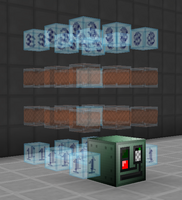
Right-click a multiblock controller with the MSHP in hand to display a full-size hologram of the multiblock for 20 seconds. The timer can be refreshed by right-clicking the controller again, but only one hologram can exist per player at any given time. Visualizing a multiblock without actually building it is extremely useful for determining the size of the multiblock and where to place all the necessary blocks/casings. It can also inform the player about the rotation of the multiblock (ie. does it extend left or right after flipping the controller with a wrench).
Hint Blocks
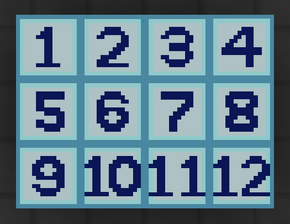
Beyond the mandatory blocks/casings, the hologram may also contain hint blocks to display all valid locations for specific hatches. There are 12 hint blocks in total, as seen in the following image, with the difference being the number displayed on each face. Whenever a hologram containing hint blocks is displayed, a corresponding message appears in chat to tell the player which hatches are associated with each hint block. For example, using the MSHP on the Electric Blast Furnace displays the following message in chat:
- Hint 1 dot: Input Bus, Maintenance Hatch, Input Hatch, Energy Hatch, Output Bus
- Hint 2 dot: Muffler Hatch
- Hint 3 dot: Output Hatch
- Hint general: Mandatory Air
This means any muffler hatch MUST be placed on a hint 2 block, any output hatch MUST be placed on a hint 3 block, and any of the remaining hatches MUST be placed on a hint 1 block. The hint general refers to a hint block with nothing on it and usually signals the location for mandatory air. Not all hint blocks need a hatch and, depending on the multiblock, not all hatches are necessary. However, hint blocks cannot be left empty and at least require a casing to occupy that space.
 |
 |
Building Multiblocks
Sneak right-click a controller with the MSHP in hand to build the multiblock with any blocks from your inventory or another inventory provider. If the player does not have the necessary blocks/casings, the missing block is highlighted in red in the hologram and the player receives a message in chat: "Suggested to place [missing block] but none was found."
Sources
There are a few possible inventory providers, listed below, where blocks/casing can be sourced from. All are enabled by default, but this can be changed by sneak right-clicking the air with the MSHP in hand to open the settings menu, going into the "Inventory Providers" section, and dragging an entry over to the disabled side. This may be useful when building different multiblocks at the same time and you want to keep their blocks separate. The order in which they appear is also important because higher entries on the enabled side have a higher priority, meaning take blocks from those inventory providers first.
- Main Player Inventory
- 5001-baubles
- 6000-adventure-backpack
- Ender Chest Inventory
There are also a few possible stack extractors, listed below, which are functionally the same to inventory providers except blocks are sourced from an item rather than an inventory. Of note is "1000-ae2-wireless" which allows the player to build multiblocks directly from their AE2 network--extremely useful for larger multiblocks in the late game. Stack extractors can also be disabled and reordered to determine priority. However, all stack extractors have a lower priority than all inventory providers.
- 0999-ae2wct-need-before-ae2
- 0999-ae2fc-need-before-ae2
- 1000-adventure-backpack
- 1000-ae2-portable-cell
- 1000-ae2-wireless
- 1000-forestry-backpack
Channels
Some multiblocks have tiered components in their structure, such as the heating coils in an Electric Blast Furnace. The MSHP can specify the exact tier of these components with channels. Right-click the air with the MSHP in hand to open the channel menu and configure them. Channels are added in key-value pairs where the key is the name of the channel (e.g. coil) and the value is an integer.
 Important: | If a channel exists but no entry is provided, the MSHP defaults to the projector stack size (master channel) instead. |
The following table lists all unique channels, their range of values, and any applicable multiblocks. Note the gt_hatch channel which works for all GregTech multiblocks and allows the MSHP to auto-place hatches. While that sounds like a bonus, it is actually extremely unhelpful because auto-placed hatches are never in the right spot and you always need to move them anyway. A few value-to-block translations are also provided below.
Heating Coil Values
Item Pipe Casing Values
Pipe Casing Values
Metal Casing Values
Machine Casing Values
|
Tiered Glass Values
|
Solenoid Tier Values
Capacitor Tier Values
IF Tier Values
Piston Block Values
QFT Values
Eye of Harmony Values
|
| Master Channel Interactions | |
|
|
Additional Settings
Under the "mod options" menu, there are additional settings/options for StructureLib that may be useful to the player. For instance, most hologram properties can be adjusted under client side configurations > hologram configurations:
- hintLifespan: The lifespan of a hologram in ticks (default: 400)
- hintTransparency: The transparency of the hologram (default: 192)
- Max Coexisting Holograms: Number of holograms that can exist at once (default: 1)
- Remove Colliding Holograms: Prevents overlap when displaying multiple holograms at once (default: True)
There are also some building properties that can be adjusted under common > hologram:
- autoPlaceBudget: Maximum number of blocks placed at once (default: 25)
- autoPlaceInterval: Interval in ticks between each auto-place (default: 300)