GT New Horizons · High Voltage (HV)
Matter Manipulator
The Matter Manipulator (MM) is a block manipulation tool for constructing, deconstructing, exchanging, copying, or moving large custom defined areas. The Matter Manipulator is available in four tiers and has four upgrades to further improve its functionality, energy capacity, range, and placement speed. The upper three tiers can use an ME storage network instead of the player's inventory for larger projects and the last tier can create AE2 ghost patterns and use a Matter Manipulator Quantum Uplink for unlimited range across any dimensions, but only for retrieving/storing items (NOT copy-pasting).
Using the Matter Manipulator generally involves right-clicking the air to open a circular GUI with many different options to choose from. The most important option is "Set Mode" which lets you switch between the six different modes. Right-click the air again to configure the parameters for that mode, such as which blocks to use or the target shape. Hold sneak right-click in the air to actually execute a function, such as placing or removing blocks, but be very careful because there is no undo option.
Video Guide by Aditya
Tiers & Upgrades
There are four tiers of the Matter Manipulator to further improve its functionality, energy capacity, range, and placement speed. Each tier uses its own set of materials and does not require the preceding tier to craft. All four tiers have infinite durability and recharge in any machine of the same voltage tier, or with a Wireless Charger.
| Property | Prototype | Mk-I | Mk-II | Mk-III |
| Voltage Tier | HV | IV | LuV | ZPM |
| Energy Capacity | 10M EU | 100M EU | 1B EU | 10B EU |
| Range | 32 | 64 | 128 | Unlimited |
| Base Speed | 16/s | 64/s | 256/s | 1,024/s |
| AE2 Compatibility | ✗ | ✓ | ✓ | ✓ |
| Quantum Uplink | ✗ | ✗ | ✗ | ✓ |
| Upgrade | Prototype | Mk-I | Mk-II | Mk-III |
| Excavation | ✓ | ✗ | ✗ | ✗ |
| Teleporter | ✓ | ✓ | ✓ | ✗ |
| Harness | ✓ | ✓ | ✓ | ✓ |
| Energy Tunnel | ✗ | ✗ | ✗ | ✓ |
| Mode | Prototype | Mk-I | Mk-II | Mk-III |
| Geometry | ✓ | ✓ | ✓ | ✓ |
| Removing | ✓[1] | ✓ | ✓ | ✓ |
| Exchanging | ✗ | ✓ | ✓ | ✓ |
| Cables | ✗ | ✓ | ✓ | ✓ |
| Copying | ✗ | ✗ | ✓ | ✓ |
| Moving | ✗ | ✗ | ✓ | ✓ |
- ↑ Requires Excavation Upgrade
There are four total upgrades to the Matter Manipulator, listed below, but not every upgrade is compatible with every tier. Install an upgrade by combining it with the Matter Manipulator in a crafting grid. It should appear at the bottom of the tooltip afterwards and cannot be removed.
- (EV) Excavation Manipulator - Unlocks the removing mode for the prototype version.
- (EV) Auxiliary Teleporter Manipulator - Doubles block placement speed.
- (EV) Adaptive Wiring Harness Manipulator - Reduces power consumption by 50%.
- (UHV) Energy Tunnel Manipulator - Unlocks multi-amp and laser energy hatches for the Quantum Uplink.
-
 Excavation Upgrade
-
 Teleporter Upgrade
-
 Harness Upgrade
-
 Energy Tunnel Upgrade
Usage
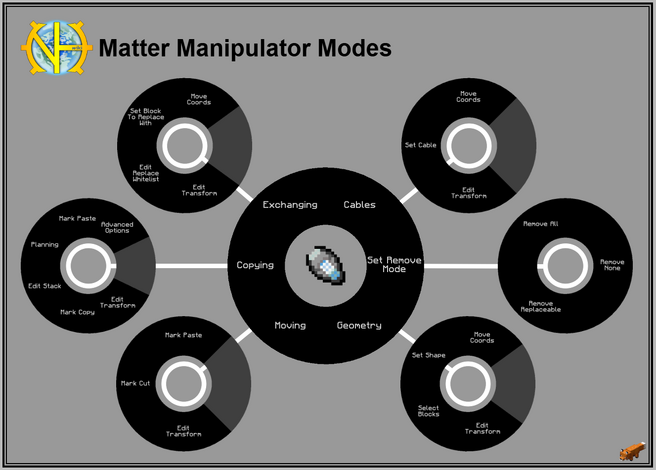
Right-click the air while holding the Matter Manipulator to open its GUI. The most important option from the main menu is "Set Mode" which lets you switch between the six different modes, listed below. This option does not appear for the prototype version because it only has geometry mode unlocked. All the modes are explained in more detail in the following section.
- Geometry - Build basic geometric shapes in the world.
- Removing - Remove blocks within a predefined area.
- Exchanging - Replaces blocks within a predefined area.
- Cables - Places AE2 or GregTech cables in long, straight lines.
- Copying - Copies predefined areas for pasting them elsewhere.
- Moving - Cuts predefined areas for pasting them elsewhere.
After selecting a mode, right-click the air again to configure the parameters for that mode, such as which blocks to use or the target shape. Information about the current configuration is displayed in the Matter Manipulator's tooltip.
Keybinds
- Control - Hold while pressing any of the commands below. Default is CTRL, some versions may default to None.
- Mark Copy - Switch to copying (copy) mode. Default is C.
- Mark Cut - Switch to moving (cut) mode. Default is X.
- Mark Paste - Switch to copying (paste) mode OR moving (paste) mode. Default is V.
- Reset Coords - Clears the current selections. Default is Z.
- Pick Block - (Exchange Mode) Select an already placed block. Defaults to middle-click.
- Set Block to Replace - (Exchange Mode) Pick a target for exchanging. Defaults to Shift + middle-click.
Selecting Regions & Executing
The working area of the Matter Manipulator is defined by two opposite corners of a cube, similar to WorldEdit. Set the first coordinate by right-clicking the face of any block, or by sneak right-clicking to select the block itself. Set the second coordinate in the same manner, except this time it can also be the air block just slightly in front of the player. Press the reset coords keybind to clear the selection at any time.
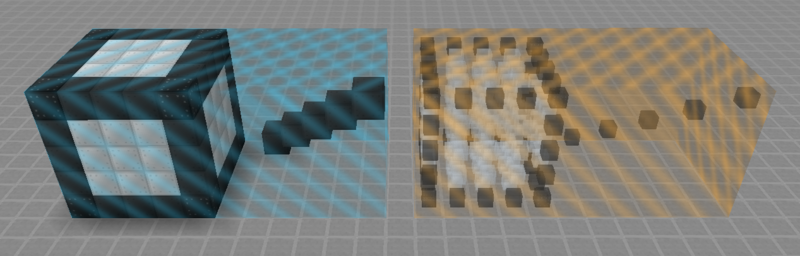
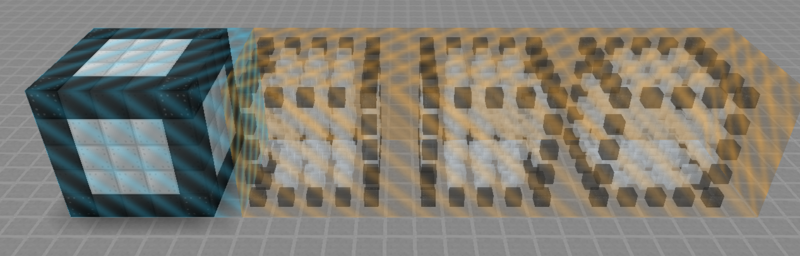
The current working area is visually represented with transparent blue or orange blocks while holding the Matter Manipulator. Structure hints are also rendered where applicable, such as the ghost of a copied area, markers where a block can be exchanged/removed, etc. See the modes section below for example images.
Execute functions, such as placing or removing blocks, by holding sneak right-click in the air. The Matter Manipulator pulls backwards similar to a bow being drawn to give the player one last second to think about their choices, and prevent accidents. If any blocks are not available or there is not enough space to pickup blocks, an error message appears in chat with a description of the issue.
 Caution: | The Matter Manipulator does not have an "undo" option. Be very careful when using it and always verify selections before executing. |
Connecting to an ME Network
The upper three tiers of the Matter Manipulator can transfer blocks and fluids to/from an ME network instead of the player's inventory--allowing for much larger builds and projects. Link it to a network like any other wireless AE2 device: place it in the top right slot of a security terminal on the network and stand within range of a wireless access point. There can be any number of Matter Manipulators connected to the same network through the same security terminal, so only one is necessary in multiplayer.
Both the range of the Matter Manipulator and the range of the wireless access point are limiting factors. The former is fixed based on the tier of device, but the latter can be increased by adding wireless boosters to the wireless access point, as seen in the following equation. The only downside is that the wireless boosters also increase power consumption.
|
|
To have truly unlimited range with the Mk-III, build a Quantum Uplink in place of a wireless access point. Connect the machine to an ME network with an ME connector hatch and insert the Matter Manipulator into the controller slot to link it. The Quantum Uplink consumes 1A ZPM EU/t while active and 131,072 EU worth of plasma per item or 1,000L transferred. It does not alloy copy-pasting between dimensions.
Modes
Geometry
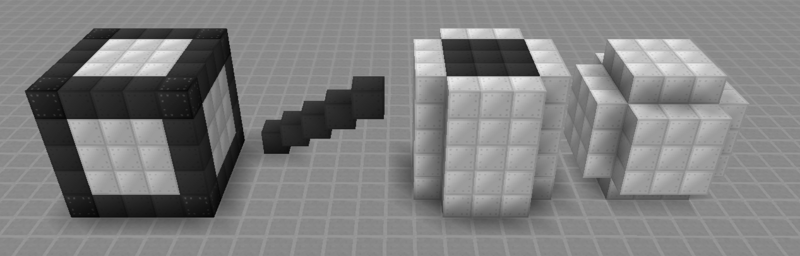
Geometry Mode is for building basic geometric shapes in the world. The options are cube, line, cylinder, and sphere but they are all defined/created from a cubic selection region. The blocks for their faces, volume, edges, and corners can all be selected individually for additional customization. For example, set the faces to any solid block and the volume to air to create a hollow shape. The Matter Manipulator can also remove blocks in a particular shape if that setting is enabled and the block selected is air. This mode cannot be used for AE2 cables, GregTech cables, fluid pipes, or item pipes since those are reserved for the cables mode.
Removing
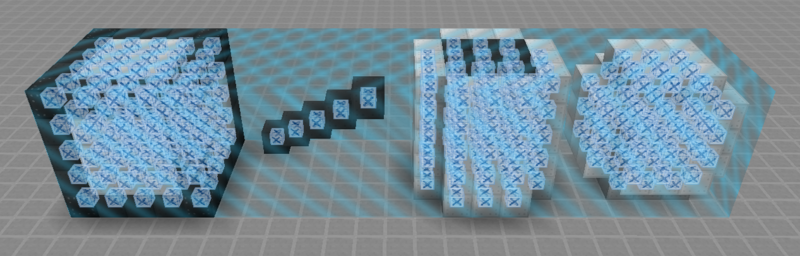
Removing Mode is slightly unique from the rest because it acts as a global setting for all other modes. There are three options, listed below. The quickest and easiest way to remove a defined area is by selecting "Remove All", switching to geometry mode, selecting a cube shape, and setting all blocks to air. The preview should show hint blocks with a big "X" on them to indicate which blocks are going to be removed.
- Remove All - Everything
- Remove Replaceable - Only replaceable blocks (grass, leaves, etc.)
- Remove None - Nothing
Removed blocks are returned to the player's inventory, or the connected ME Network if the Matter Manipulator is linked. There is no restriction on mining level or the effective tool, but it cannot pick up blocks that require silk touch (glass still breaks, stone returns to cobblestone, etc). The Matter Manipulator also cannot act as a mining gadget since ore blocks are voided.
Removed fluids, either in-world or in non-transportable fluid storage, are placed in any fluid storage in the player's inventory, or the connected ME Network. If no valid fluid storage exists, then the fluid is voided.
Exchanging
Exchanging Mode replaces any whitelisted blocks with another block. The whitelist defaults to air so anything else needs to be added manually through the circular GUI, or by sneaking and pressing the pick-block keybind (default mouse 3). Blocks on the whitelist are listed in the tooltip in case you forget. There is no way to remove a single block from the whitelist, and there is no blacklist option. Select the block to replace with through the circular GUI, or by pressing the pick-block keybind without sneaking.
This mode is particularly useful for upgrading heating coils, energy hatches, and cables. However, be very careful with anything electric because an instant swap to a higher voltage tier can potentially cause explosions.
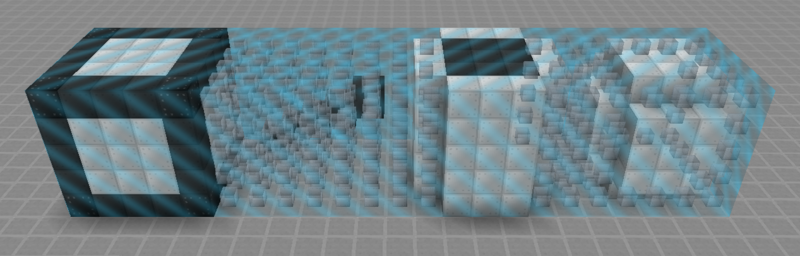
Cables
Cables Mode places AE2 cables, GregTech cables, fluid pipes, or item pipes in a straight line and connects them together. EnderIO conduits are not supported. The line can be horizontal or vertical, but not diagonal. This mode also supports exchanging cables while maintaining all inherited connections, similar to Exchanging Mode. The only property not inherited is the color.
Copying
Copying Mode simply copies the selected area to another location, similar to copy-and-paste. The area to copy is highlighted blue and the area to paste is highlighted orange. The area to paste can be flipped or rotated along any of the three axes, or even stacked (ie. pasted multiple times in a single iteration). The pasted blocks are pulled from the player's inventory, or a connected ME Network if the Matter Manipulator is linked. This mode works very well for both AE2 and GregTech components, since it attempts to preserve metadata and tile entity data as accurately as possible--including any stored items in inventories.
Transferred Parameters for GregTech Components
|
Transferred Parameters for AE2 Components
|
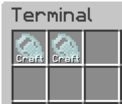
Copying Mode can also create ghost patterns for ME networks if connected to a Quantum Uplink. Select the planning option in the circular GUI and choose between manually or automatically creating the patterns, and whether to include all of the selected blocks in the paste area or only the ones missing from the paste area. There is no limit on the number of ghost patterns that can be created.
Moving
Moving Mode simply moves the selected area to another location, similar to cut-and-paste. The area to cut is highlighted blue and the area to paste is highlighted orange. This mode also works very well for both AE2 and GregTech components, since it attempts to preserve metadata and tile entity data as accurately as possible--including any stored items in inventories. The only limitation is that the two areas cannot overlap since the Matter Manipulator prevents it from executing and displays an error message in chat. The solution is to move the blocks to an intermediate location first.