GT New Horizons · Other systems
Steve's Factory Manager
Steve's Factory Manager (SFM) is an advanced automation mod that uses visual logic programming (block commands) to create custom scripts. SFM is comparable to OpenComputers in terms of complexity and capability, but it does not require the user to have any coding knowledge or experience. SFM components are cheap/simple to make, do not consume any power, and are incredibly fast. The biggest downside is that scripts are not easily shareable; players must create the scripts themselves instead of downloading them online. The most common applications of SFM include automating Thaumcraft Infusion, the Vacuum Reactor, the SSASS, and the Forge of the Gods.
Components

The following are all the SFM components that are physically placed into the world to interact with inventories, players, redstone, etc. They are categorized by function and each given a short description below.
The Machine Inventory Manager (MIM) stands out above the rest because it is the central controller of an SFM setup. The MIM stores/executes the current script and controls every other component on the network. Only one is required, but there can be multiple on the same network if it is necessary to run separate scripts on the same components simultaneously. See the Programming Basics section below for more information on how to actually use the MIM and write scripts.
 Caution: | Breaking the Machine Inventory Manager voids scripts. Use the Manager Duplicator to copy the script first, then bookmark it in NEI to transfer between worlds. |
Cables
The following can be used to connect or join components to the MIM. These are the most common components in a network.
- Inventory Cable - Connects components and stationary inventories to the MIM, including fluid tanks and full-block ME interfaces.
- Cable Cluster - Craft with other components to store/use them all within the same block. Does NOT act as a standard inventory cable and does NOT extend to inventory cables beyond it--terminal component.
- Advanced Cable Cluster - Craft with other components to store/use them all within the same block. Also acts as a standard inventory cable and extends to inventory cables beyond it.
-
 Inventory Cable
-
 Cable Cluster
-
 Advanced Cable Cluster
Redstone
The following can be used to interact with redstone signals.
- Redstone Emitter - Emits a redstone signal at a particular strength and from specific side(s).
- Redstone Receiver - Receives redstone signals from specific sides. Commonly used by triggers to initiate or pause scripts.
- Block Detector - Detects when block updates occur. Another option for triggers to initiate or pause scripts.
-
 Redstone Emitter
-
 Redstone Receiver
-
 Block Detector
World Interaction
The following interact with entities or players in the world as opposed to stationary inventories.
- Inventory Relay - Access inventories of non-stationary entities such as minecarts.
- Advanced Inventory Relay - Access inventories of non-stationary entities such as minecarts AND players.
- Item Valve - Suck in dropped items in a 7x7x7 cube around itself, or push items out into the world like a dispenser. Has a slight delay.
- Advanced Item Valve - Suck in dropped items in a 7x7x7 cube around itself, or push items out into the world like a dispenser. Has no delay.
- Block Gate - Break, pickup, or place blocks in the world.
-
 Inventory Relay
-
 Advanced Inventory Relay
-
 Item Valve
-
 Rapid Item Valve
-
 Block Gate
Camouflage
These blocks take on the appearance or form of other blocks to blend seamlessly into their surroundings. These do not act as inventory cables and need to be added to cable clusters in many situations. If necessary, they can update during scripts.
- Cable Camouflage - Imitate the faces of other blocks.
- Double Sided Cable Camouflage - Imitate entire blocks. Useful for transparent blocks such as glass.
- Transforming Cable Camouflage - Imitate entire blocks including their collision box. Useful for doors and fences. Does not replicate blast resistance.
-
 Cable Camouflage
-
 Double Sided Cable Camouflage
-
 Transforming Cable Camouflage
Other
The following do not fit into any of the above categories and serve very niche purposes.
- Creative Supplier - Acts as an infinite storage for creative testing.
- RF Node - Acts as an I/O point for RF power, sort of like a P2P tunnel.
- Sign Updater - Changes the text on vanilla signs after they are placed, effectively turning them into programmable screens.
-
 Creative Supplier
-
 RF Node
-
 Sign Updater
Tools
- Manager Duplicator - Sneak right-click the MIM to copy the current script. Sneak right-click again to paste the copied script.
- Factory Labeler - Right-click to open the internal GUI and make custom labels for components. Left-click to apply the selected label. Useful for identifying components in the MIM beyond just their grid coordinates.
-
 Manager Duplicator
-
 Factory Labeler
Programming Basics
Right-click the MIM to open up its internal GUI--the whiteboard. This is where scripts are made and configured by the player. The various command blocks are listed by their unique icons on the left side of the whiteboard. Hover over the icons to view their display names.
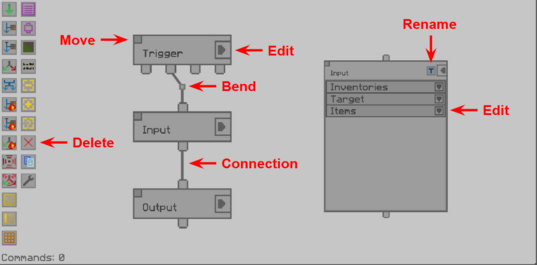
The Whiteboard
- Create commands by clicking their icon.
- Move commands by clicking and dragging the small box in the top left corner. Hold shift to lock to grid.
- Edit commands by right-clicking anywhere on the block, or by clicking the arrow on the right side.
- Rename commands by clicking the blue "T" next to their name, once expanded.
- Duplicate commands by dragging them over to the icon with two blue rectangles.
- Delete commands by dragging them over to the icon with a red cross.
Input nodes to command blocks are always on the TOP side and output nodes are always on the BOTTOM side.
- Create a connection between two commands by left-clicking an input node and then an output node, or vice-versa.
- Delete connections by left-clicking the same input node or output node twice in a row.
- Create bends in connections by right-clicking an input node or output node, after a connection has been established. Hold shift to lock to grid.
- Delete bends by shift right-clicking them.
Commands
Instead of code, the MIM uses command blocks for its scripts. Each one serves a unique purpose for interacting with connected inventories and/or components. They are categorized by function and each given a short description below.
Redstone
- Trigger - Initiates scripts on a set interval, on a delayed trigger, by redstone control, or by block update detection.
- Redstone Emitter - Set the output and strength of redstone emitters. Can also pulse and choose between weak/strong signals.
- Redstone Condition - Outputs True or False depending on whether or not all (or any) of the redstone signals are passed to a receiver.
-
 Trigger
-
 Redstone Emitter
-
 Redstone Condition
Items
- Input - Select an inventory to input items into the SFM network.
- Output - Select an inventory to outputs items from the SFM network.
- Condition - Outputs True or False depending on whether or not all (or any) of the identified items are present.
- Autocrafter - Performs basic 3x3 crafting recipes. Follows an input command and precedes an output command.
-
 Input
-
 Output
-
 Condition
-

Liquids
- Liquid Input - Select a fluid tank to input liquid into the SFM network.
- Liquid Output - Select a fluid tank to output liquid from the SFM network.
- Liquid Condition - Outputs True or False depending on whether or not all (or any) of the identified fluids are present.
-
 Liquid Input
-
 Liquid Output
-
 Liquid Condition
RF
- RF Input - Select an RF Node to input RF into the SFM network.
- RF Output - Select an RF Node to output RF from the SFM network.
- RF Condition - Outputs True or False depending on whether or not the current RF exceeds the trigger level.
-
 RF Input
-
 RF Output
-
 RF Condition
Organization and Control
- Variable - Associate certain inventories or components with a particular variable that can then be used by other commands.
- For Each Loop - Iterates over different elements in a list, such as all the inventories under one particular variable.
- Flow Control - Splits or joins existing connections to be used by more than one command.
- Command Group - Creates an alternate whiteboard for condensing many commands down into one on the main whiteboard.
- Group Node - Creates input/output connections for a command group.
-
 Variable
-
 For Each Loop
-
 Flow Control
-
 Command Group
-
 Group Node
Other
- Camouflage Updater - Change the appearance of camouflage blocks. Collision and bounds require the transforming cable camouflage.
- Sign Updater - Change the displayed text on vanilla signs by each individual line.
-
 Camouflage Updater
-
 Sign Updater
Examples
Despite knowing the difference between all the different components and commands, SFM can still be very confusing to use. The following examples show how to perform basic operations to help the player get started.
Moving Items
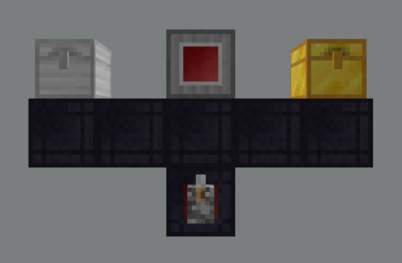
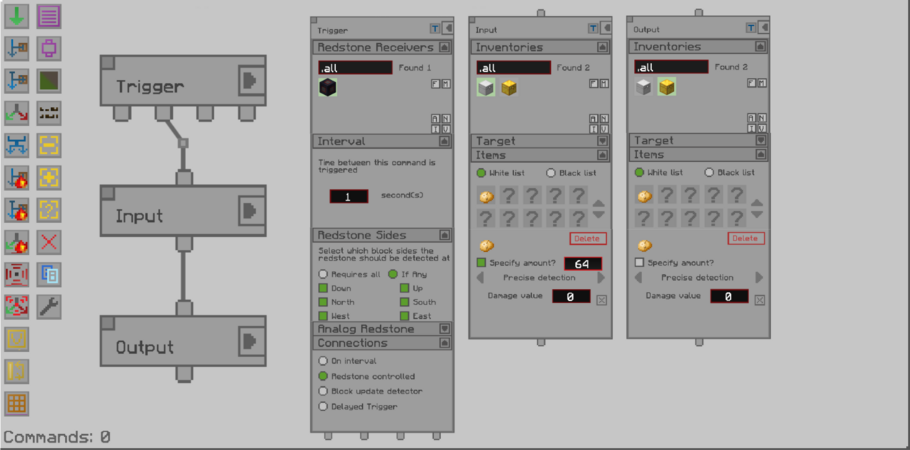
This example covers how to move items from one inventory to another. It also incorporates a manual override to disable the script. The setup only requires a redstone receiver and some inventory cables, as seen in the image to the right. The settings shown transfer 64 potatoes from the iron chest to the gold chest every second, if enabled by the lever.
| 1. Start by placing a trigger command. Change the connection to REDSTONE CONTROLLED and select the only redstone receiver. Also set the interval to 1 second. The side is irrelevant so all of them are enabled. Connect the WHILE HIGH SIGNAL output node to the next command to continuously run the script on the set interval while the lever is enabled.
2. Place an input command next. Select the iron chest as the inventory to pull items from and change the filter to a whitelist. Search for the desired item (potato) by clicking one of the question marks--the first time may take a while to load. Right-click the item to configure it further. Specify the amount and detection method (precise, NBT independent, fuzzy, etc.). 3. Place an output command next. Select the gold chest as the inventory to push items to and change the filter to a whitelist. Search for the desired item (potato) by clicking one of the question marks. Right-click the item to configure it further. Specifying an amount creates an upper limit of how many of those items are allowed in the selected inventory. The last step is to switch the lever to start the script. |
 |
 | |